Kinefinity App Instruction
Kinefinity App which is re-designed from bottom to top works with Kinefinity cameras as MAVO Edge 8K/MAVO LF/MAVO/TERRA 4K (firmware KineOS6.5). The App can tune the shooting parameters or get the status of these cinema cameras responsively. The brilliant thing is that the App displays the video stream from cameras in real time, with super low latency if the iOS devices and camera work in stable and good WIFI environment.
Preparation before running Kinefinity APP
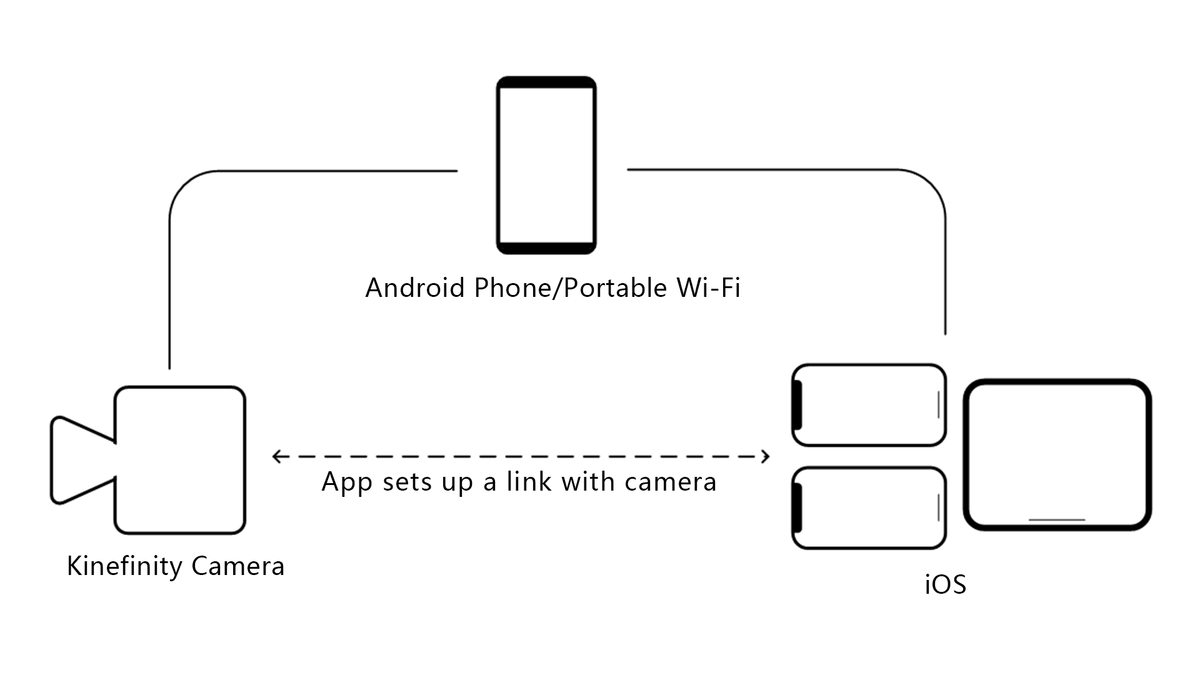
Update the Kinefinity cameras (TERRA 4K, MAVO, MAVO LF) to firmware KineOS 6.5, and make sure mount a high-gain dual-band internal-pin Wi-Fi antenna to the camera.
The cinema camera works as WIFI Client mode, so it needs an external wireless AP (access point), which could be Android or iPhone12 hotspot (do not recommend iPhone 11 or below as hotspot for this application) or wireless router, dual band preferred.
Take Android hotspot and iPad with Kinefinity App as the example
[configuration → Network → WIFI: on and Stream: on]
Generate the code by QR Code Generation website (https://qifi.org) or WIFI hotspot code by Android Phone.
Set iPad WIFI or use iOS camera to recognize the WIFI code to access to the WIFI.
[Configuration → Network → Connect to Network…]. The camera scans the Wi-Fi QR code, obtains the SSID name and password, and connects to the Wi-Fi network. If it is successful, the camera accesses the Wi-Fi network and assigns an IP address.
Open Kinefinity App, click [configuration icon on the UI → Set up → Camera Server → IP address], input IP address of the camera, then the App will automatically connect to the camera.
Three modes
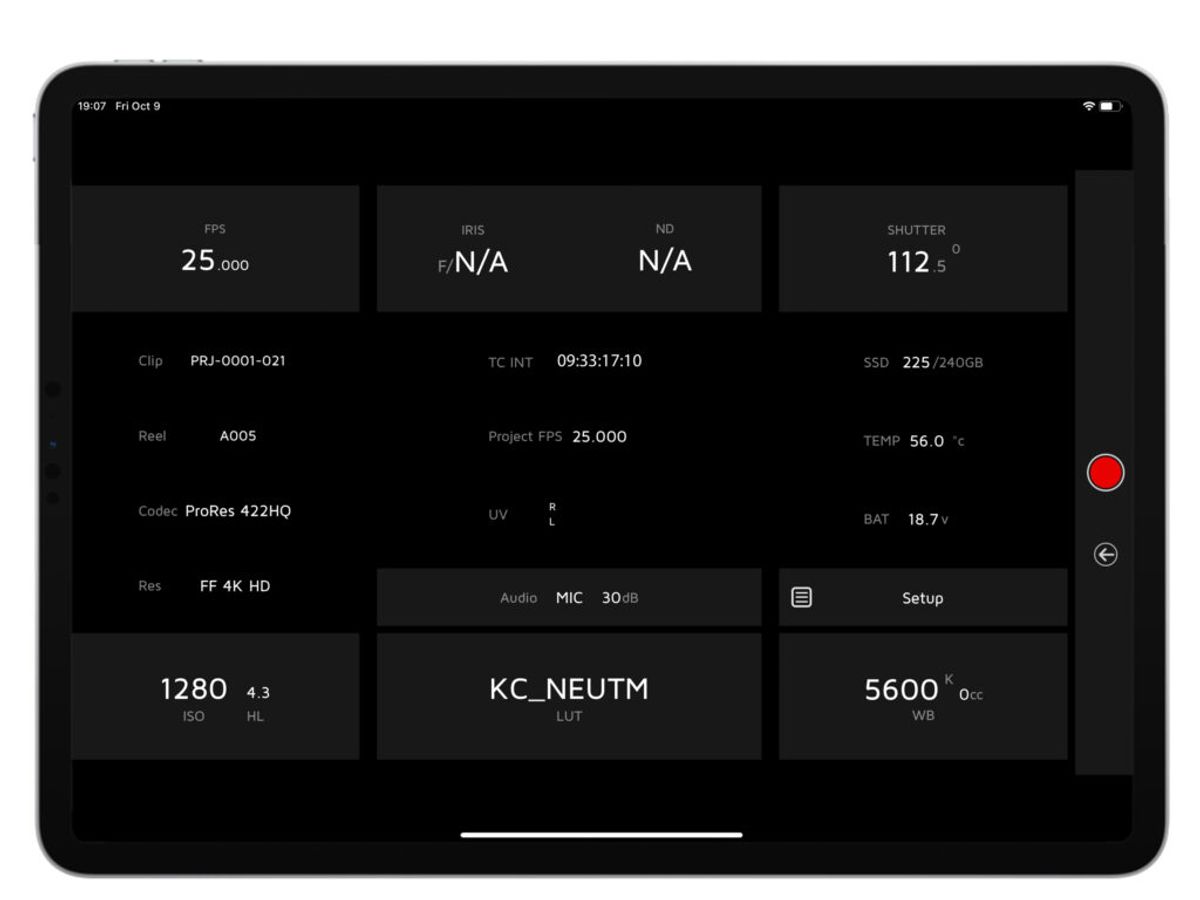
Real-time video and key parameters. Users are capable of changing the key parameters by simply touching the UI.
Key parameters only.
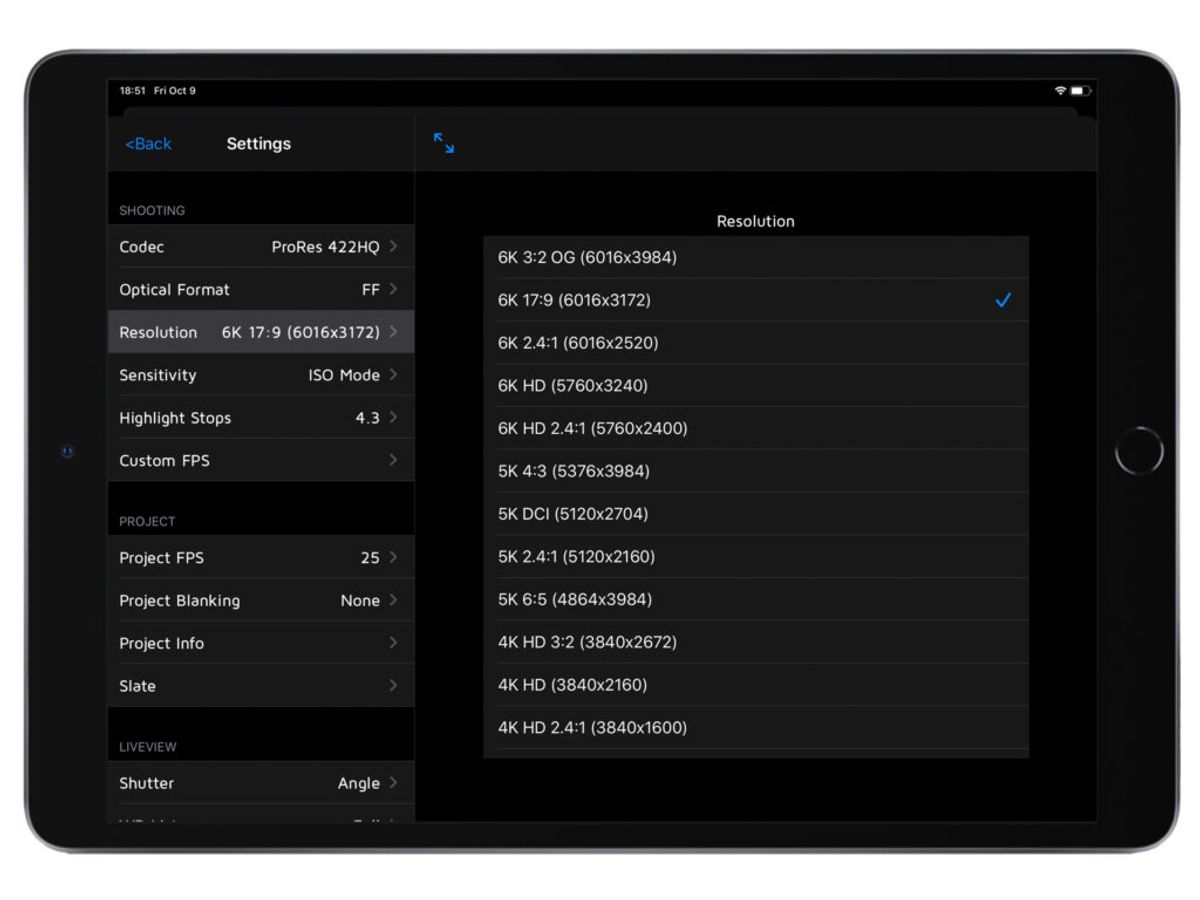
Menu/configuration mode. Input slate information and project information very easily.
Note
The performance of camera may be affected if number of active links is over six at the same time.
Kinefinity App is available to iPhone with iOS10 or above. But if as WIFI hotspot, strongly recommend iPhone 12.
QR code from some Android Phones may not be recognized by the camera. In this way, please generate the code by QR code generation website: https://qifi.org — fill in the SSID and Key on the website, then generate the QR code to use.
Kine cameras enables to record same WIFI information, no need to have extra setting in next time boot up.
The IP address of the camera depends on the WIFI. As the WIFI changes, the camera IP address will change.