Vista Quick Post-Production Workflow
Across every resolution, Vista records in two video formats: KineLOG mode and 709 direct output. Either can be selected from the camera menu, letting you choose between maximum grading latitude and a fast, ready-to-deliver image.
KineLOG Mode
Vista’s KineLog3 inherits the excellent color science and extremely high dynamic range of Kinefinity’s Edge cinema cameras. It is ideal as a source format for mid-to-high-end TVCs, promotional films, and theatrical work, offering 14+ stops of latitude and a 10-bit grading range.
When you select “KineLOG” mode on Vista, the camera records log footage. Log footage looks flat and grey, preserving the maximum amount of color information so you can stylize and precisely grade in post using DaVinci Resolve’s Color Space Transform or a LUT.
Method 1 · Color Space Transform
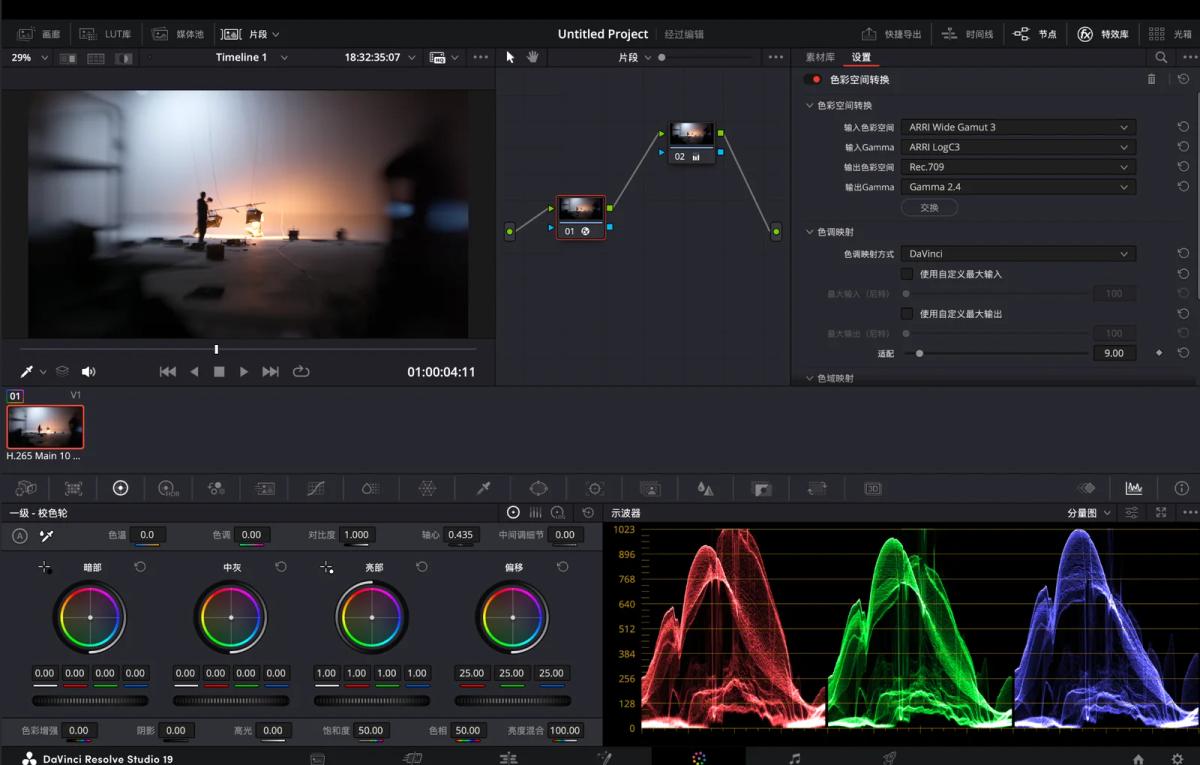
Create a new timeline and drag in the log clip. In DaVinci’s “Color” page, add a node, then find “Color Space Transform” in the “Effects” library (top-right) and drag it onto the node. Set the parameters below to recover the Rec.709 image:
ARRI Wide Gamut 3
ARRI LogC3
Rec.709
Gamma 2.4
Method 2 · LUT
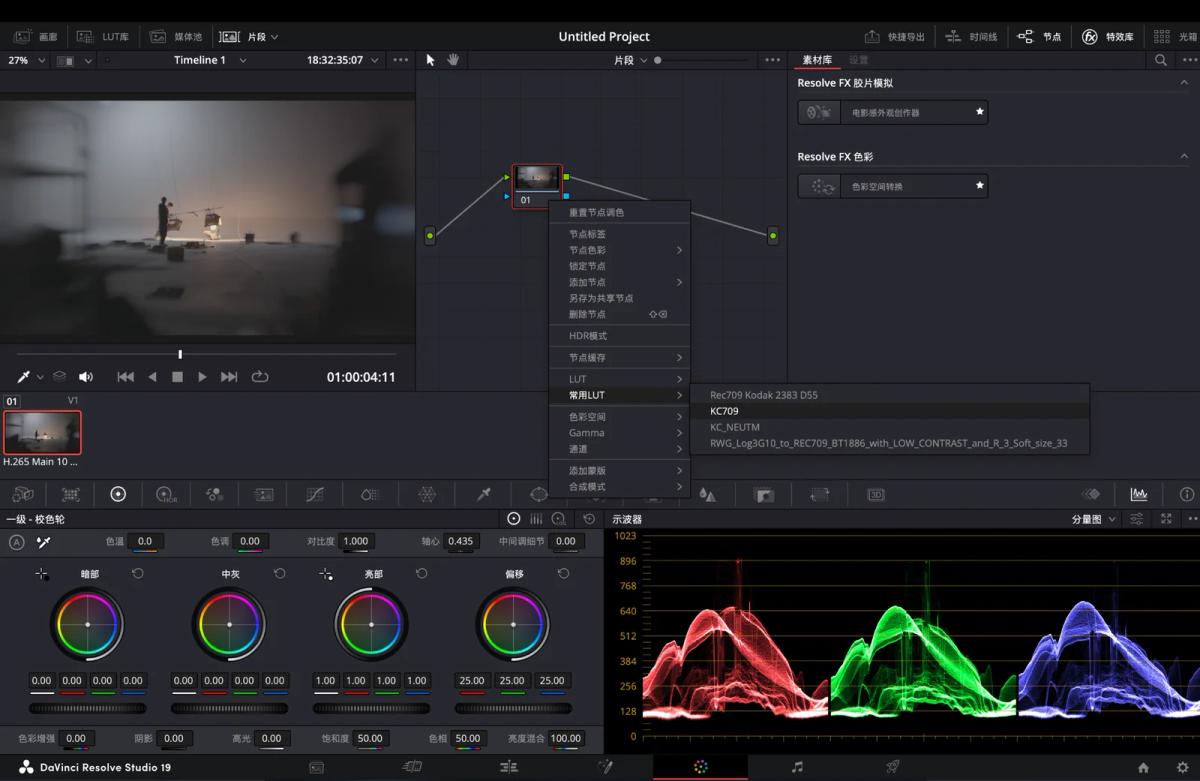
Create a new timeline and drag in the log clip. In the “Color” page, add a node, right-click to open the menu, and choose the “LUT” option. From the LUT list, pick “KC709” or “KC_NEUTM” and apply it — you’ll get the monitoring LUT look or your own custom, stylized LUT look.
⚠️ This step requires loading KC709 or KC_NEUTM into your DaVinci LUT library beforehand.
709 Direct Output
When you select “KC709”, “KC_NEUTM”, or any custom LUT on Vista, the camera bakes the LUT into the log signal and records 709 footage. The clips are normal, fully-colored footage that still retains a 10-bit grading range — ideal for fast turnaround as well as stylized, real-time monitoring and direct delivery.
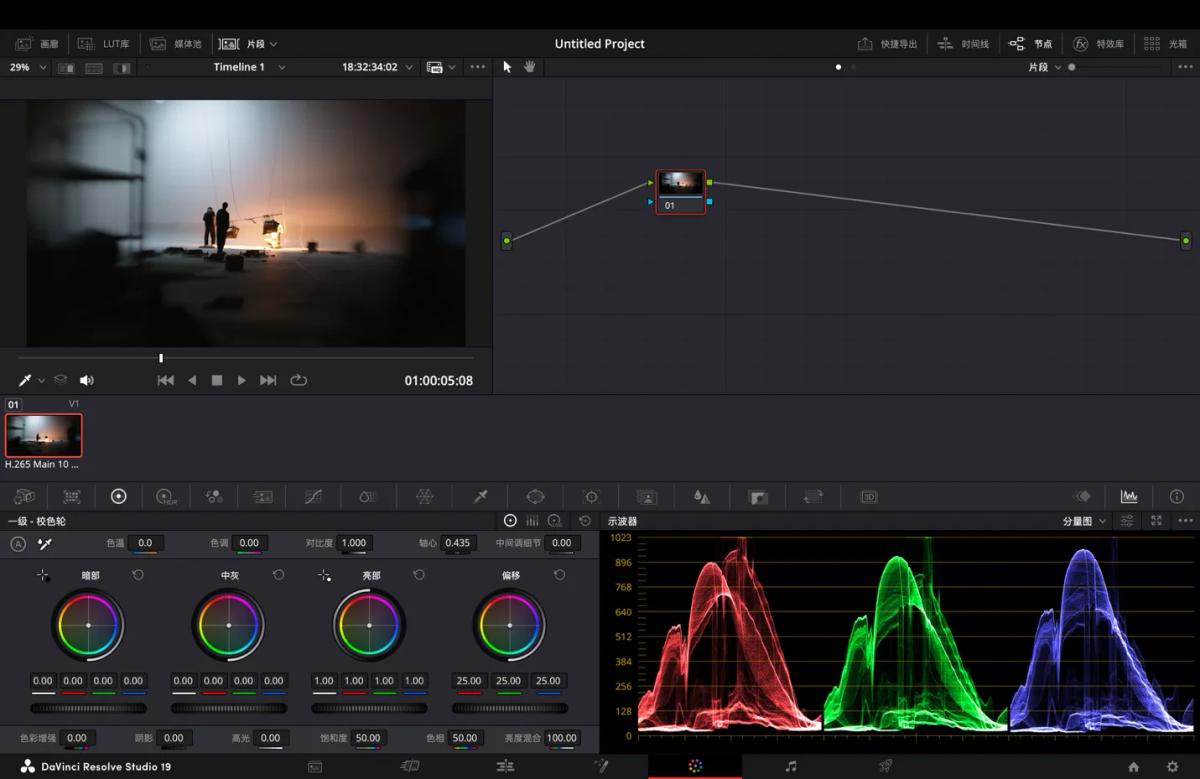
709 post workflow: create a new timeline, drag in the clip, enter the “Color” page, and bring up the “Primary Color Wheels” at the bottom to adjust exposure, color temperature, and more.